
The Security section updates password complexity requirements for user management.
Security settings would be available if you are logged in as an administrator.
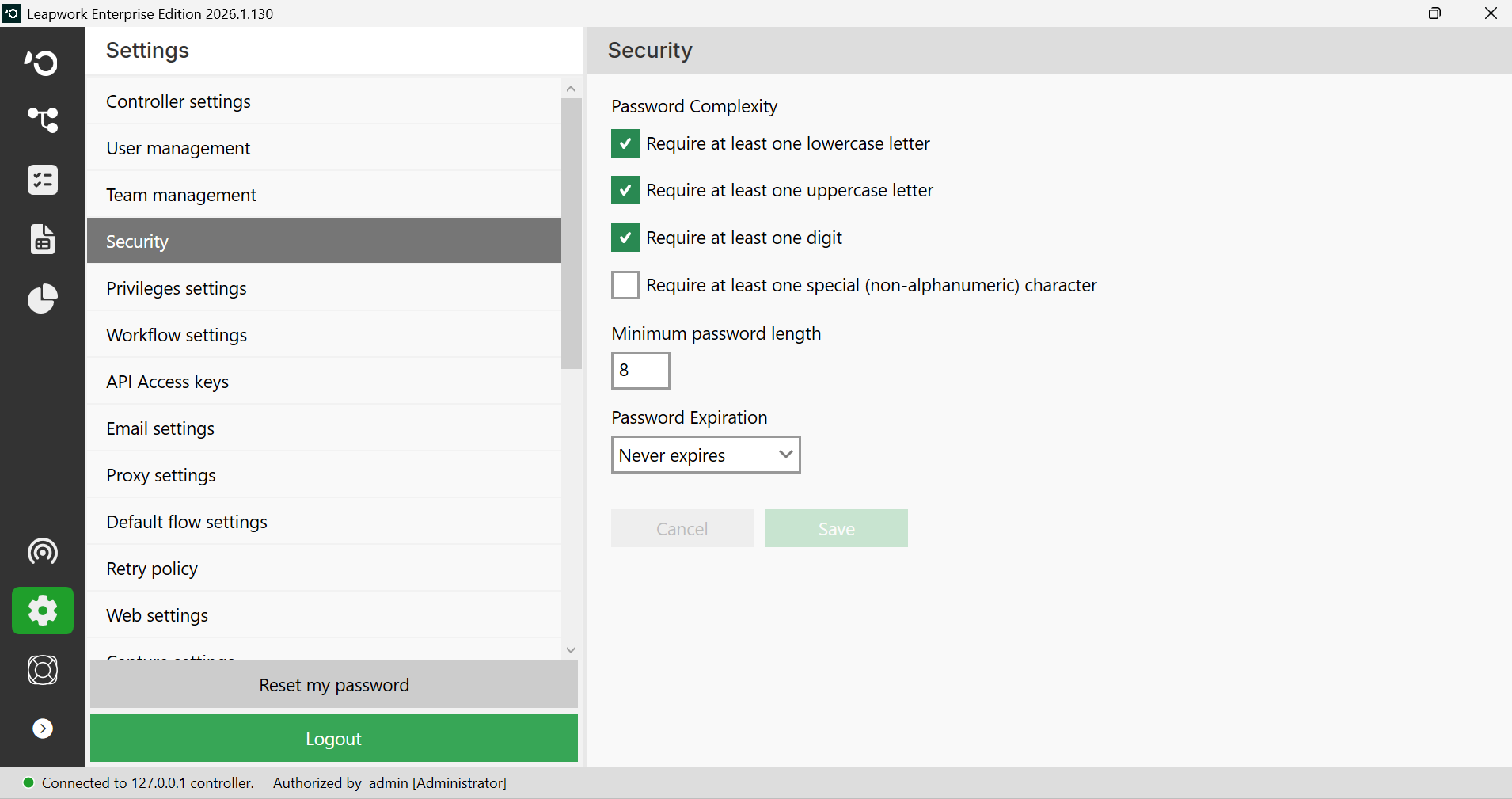
Note: The screenshots on this page use the Elegance Design, introduced in 2025.3. If you are using an earlier version, your layout may look different.
-
Configure
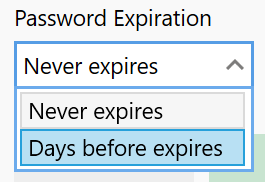
The Password Expiration drop-down is used to select options from Never expires or Days before expires and enforce password renewal after a set number of days.
-
Click Save. The new password requirements will be sent to your entire team.
-
You can log in with your current password until you save the new requirements. If you last updated your password 28 days ago and set a 30-day expiration, you must update it when accessing Leapwork Flow after two days.
-
To prompt all users to update their passwords quickly, set the Days before expires to a low number (e.g., two days). After everyone updates, reset the expiration to your organization's policy (e.g., every 90 days).
-
On a user level, you can always go to User management, select the desired user, and click Edit, click on Set new password, and then either set a new password manually or choose the Automatically create a password checkbox select Enforce this user to change their password on next login.