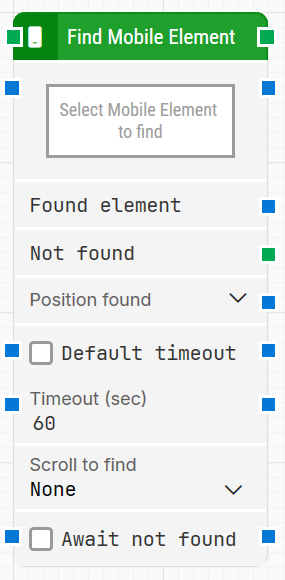
The Find Mobile Element block is used to locate a specific mobile element in an application. Once the element is found, it can be reused by other blocks in the flow, for example to click it, read values, or validate its state.
Fully expanded, the Find Mobile Element block shows the following properties:
Note: The screenshot on this page uses the Elegance Design, introduced in 2025.3. If you are using an earlier version, your layout may look different.
Quick-start
Drag Find Mobile Element onto the canvas.
Capture the target in Select Mobile Element (required) and optionally adjust parameters such as Default timeout, Timeout, Scroll to find, Await not found.
Run the flow when it’s ready.
For a minimal setup, set Select Mobile Element to the control you want to find and run the flow with the default timeout settings.
Building block parameters
Parameters
Block header: Shows the current name of the Find Mobile Element block. You can rename it at any time by double-clicking the header and typing a new title to keep flows readable and organized.
Select Mobile Element: Contains the locator for the mobile element to be found. This parameter must be set for the block to work.
Right-click and choose Capture new mobile element to define the locator.
Right-click and choose Clear mobile element to remove it.
Found element: Contains the mobile element that was found in the application. You can pass this element to other blocks as a source element so they can interact with the same control without searching again.
Not found: Triggers if the mobile element cannot be located before the timeout elapses. This output is typically used to branch the flow or to explicitly fail the case by connecting it to a Fail block.
Position found: Returns the position where the mobile element was found as X, Y coordinates within the application. You can expand this property to work with X and Y separately.
Area found: Returns the position and size of the found mobile element as X, Y, Width, Height coordinates within the application. Expanding this property lets you use the position and size values and their nested sub-properties individually.
Default timeout: Controls how the timeout is determined:
When the checkbox is unchecked, you can set a custom value in Timeout (sec); the default value shown is 60 seconds.
When the checkbox is selected, the block uses the Default timeout value defined in the flow settings.
Timeout (sec): Defines the maximum time the block will spend searching for the mobile element before giving up and triggering the Not found output. This timeout applies only to this block. Every case also has a separate global timeout in the Settings panel; if the case runs longer than that global timeout, it is cancelled regardless of this block’s timeout.
Scroll to find: Indicates whether scrolling should be used while searching for the mobile element. When a value other than None is selected, the block scrolls through scrollable content during the search, which is useful when elements only appear after scrolling.
Await not found: When selected, the block assumes that the mobile element is currently present and waits until it can no longer be found on the screen before proceeding. This is useful, for example, when you need to wait for a “Loading” indicator or temporary message to disappear.