The Get Mobile Text building block is used to retrieve text from a selected mobile element in an application. You can also refine what gets captured using formatting, filtering, timeout, and scrolling settings.
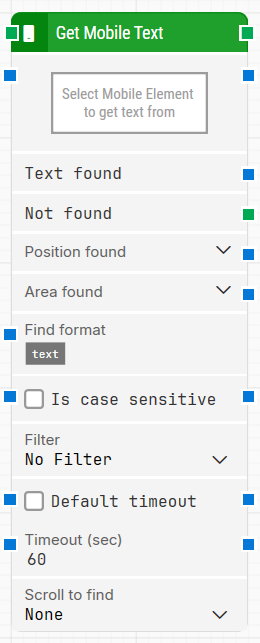
Fully expanded, the Get Mobile Text block shows the following properties:
Note: The screenshot on this page uses the Elegance Design, introduced in 2025.3. If you are using an earlier version, your layout may look different.
Quick-start
Drag Get Mobile Text onto the canvas.
Set Select Mobile Element to get text by capturing the target element (right-click Capture new mobile element, or click the property to open the mobile recorder).
Connect its green input to the previous step in your flow, and connect the success and Not found outputs to the next step(s).
Run the flow.
Building block parameters
Parameters
Block header: Shows the current title of the Get Mobile Text block. You can rename it by double-clicking the header and typing a new title. The green input connector triggers the block when the flow reaches it, and the green output connector triggers when the mobile text is found successfully.
This parameter is mandatory.
Select Mobile Element to get text: Defines the mobile element locator to extract text from. This parameter is required. You can capture the locator either by right-clicking and selecting Capture new mobile element, or by clicking the property to open the mobile recorder. You can clear it by right-clicking and selecting Clear mobile element.
Text found: Outputs the text retrieved from the selected mobile element.
Not found: Branches the flow when suitable text is not found within the timeout.
Position found: Returns the X,Y position where the text was found. Expand the property to work with X and Y separately.
Area found: Returns the X,Y position and size (Width, Height) of the area where the text was found. Expand the property to work with the values separately.
Find format: Lets you define a format the text must match to be retrieved (for example, using a pattern like Status: [TEXT] today).
Is case sensitive: Controls whether matching (for example, format matching) is case sensitive.
Filter: Applies an additional condition the text must meet to be retrieved (for example, only text that starts with a specific value).
Default timeout: Controls whether the block uses the default timeout from the flow settings or a custom timeout value.
Timeout (sec): Sets the maximum time spent searching for the text before the block gives up and triggers Not found.
Scroll to find: Controls whether the block scrolls while searching for text (useful in scrollable views)