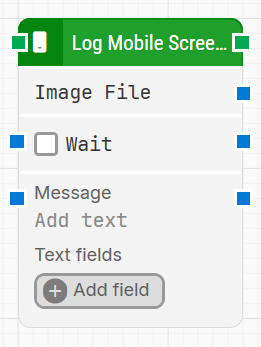
The Log Mobile Screenshot block captures a screenshot from the mobile device during test execution.
It can optionally delay before capture, add a message to the log for context, and include custom key-value text fields. The captured image is available in PNG format and can be passed to other blocks that support screenshots.
Note: The screenshot on this page uses the Elegance Design, introduced in 2025.3. If you are using an earlier version, your layout may look different.
Quick-start
Drag Log Mobile Screenshot onto the canvas.
Specify the basic parameters required for this block to operate: Image File, Wait, Message, Text fields.
Run the flow when it’s ready.
Building block parameters
Parameters
Block header: The green input connector triggers the block to start executing. The green output connector triggers when a screenshot has been successfully taken. You can rename the block title (“Log Mobile Screenshot”) by double-clicking it and typing in a new title.
Image File: Provides an output containing the captured screenshot in PNG format.
Values: Image (PNG format)
Notes: Can be used as input in other image-processing blocks.
Wait
Delays the execution of the block for a specific period of time.
Values: Number (seconds)
Message
Allows you to add a custom text message (up to 250 characters) to the log entry along with the screenshot.
Values: Plain text or token
Notes: Optional field. Hidden in collapsed view to reduce clutter. Has input and output connectors for dynamic use. Available from 2025.3.0 onward.
Text fields
Adds custom key-value fields to the block. These fields can pass external or dynamic values into properties.
Values: Dynamically added fields (click Add field to create)
Notes:
Right-click inside a supported field (e.g., Message) and select Insert token to use a text field value.
Fields can be renamed by double-clicking on them. All tokens using that field will update automatically.
Useful for injecting context-specific data or variables into the block during runtime.