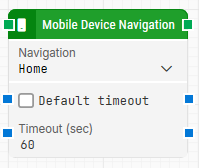
The Mobile Device Navigation block performs quick navigation actions on a mobile device, such as going Home, Back, opening the Menu, pressing the Power button, or adjusting Volume. On iOS, the Back and Menu actions are not supported, so using them will result in a keyframe message.
Fully expanded, the Mobile Device Navigation block shows the following properties:
Note: The screenshot on this page uses the Elegance Design, introduced in 2025.3. If you are using an earlier version, your layout may look different.
Quick-start
Drag Mobile Device Navigation onto the canvas.
Connect the block in the flow and specify Navigation. If you choose Volume, also specify Operation. If you choose Power and enable Hold, configure the hold behavior for the device platform. Optionally configure timeout-related settings if needed.
Run the flow when it’s ready.
Building block parameters
Parameters
Block header: The green input connector triggers the block to start executing. The green output connector triggers when the navigation has been successfully completed. You can rename the block by double-clicking the header text and typing a new title.
Navigation: Selects the navigation action to perform on the mobile device.
Home: Navigates to the device home screen.
Back: Navigates one step back. On iOS, this action is not supported and will produce a keyframe message.
Menu: Opens the device menu. On iOS, this action is not supported and will produce a keyframe message.
Power: Presses the device power button. Pressing once locks the screen, and pressing again unlocks it. If you enable Hold, additional options are shown depending on whether the device is Android or iOS.
Volume: Uses the device volume button. When selected, Operation becomes available to choose Up or Down. If you enable Repeat, Count becomes available to define how many times the action is performed.
Default timeout: Controls whether the block uses the default timeout from the flow settings or a custom timeout value.
Timeout (sec): Sets the maximum time allowed for performing the navigation action before the block gives up. This field is used when Default timeout is not selected.
Note: All cases have a global timeout configured in the Settings panel. This is unrelated to the timeout of a single building block. However, a running case will automatically be cancelled if it runs for longer than the global timeout.