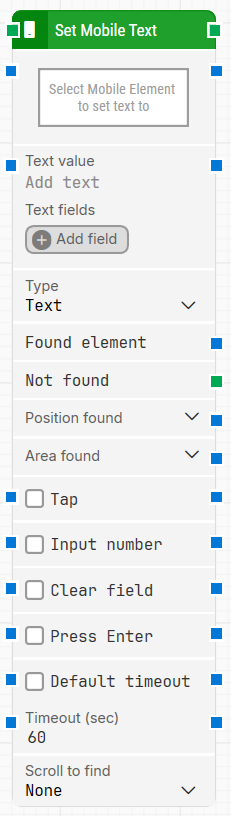
The Set Mobile Text block types a text value into an input field in a mobile application. It can type normal text or a password value, optionally tap the field first, clear existing content, and press Enter after typing. If the target element cannot be found within the timeout behavior, the block triggers Not found so you can branch the flow.
Fully expanded, the Set Mobile Text block shows the following properties:
Note: The screenshot on this page uses the Elegance Design, introduced in 2025.3. If you are using an earlier version, your layout may look different.
Quick-start
Drag Set Mobile Text onto the canvas.
Connect the block in the flow and specify Select Mobile Element to find (required) and Text value. Optionally set Type, and enable Tap, Input number, Clear field, or Press Enter depending on how the field behaves.
Run the flow when it’s ready.
Building block parameters
Parameters
Block header: The green input connector triggers the block to start executing. The green output connector triggers when the text has been successfully typed. You can rename the block by double-clicking the header text and typing a new title.
Select Mobile Element to find: Required. Contains the locator for the mobile element to type into. Capture a locator by right-clicking the property and selecting Capture new mobile element, or click the property to open the mobile recorder. Clear the locator by right-clicking and selecting Clear mobile element.
Text value: The text to be typed. This field can contain tokens from Text fields. To insert tokens, right-click and select Insert token.
Text fields: Stores key–value pairs that can be inserted as dynamic tokens into Text value via Insert token.
Type: Selects how the value is handled when typing.
Text: Types the value as normal text.
Password: Types the value as a password. A password value can’t be read by other users.
Found element: Contains the found mobile element in the application. You can reuse it as a source element in other blocks to narrow down searches.
Not found: Triggers if the mobile element is not found before the timeout behavior completes. This is typically used to branch execution flow or explicitly fail a case by linking it to a Fail block.
Position found: Outputs the position where the mobile element was found as X, Y coordinates. Use the expander to work with X and Y separately.
Area found: Outputs the position and size of the found element as X, Y, Width, Height, starting with the upper-leftmost pixel. Use the expander to work with the area’s position and size and their nested sub-properties separately.
Tap: When enabled, the block performs a tap on the element before entering the text.
Input number: When enabled, the block selects numeric input before entering the text.
Clear field: When enabled, any existing text in the selected element is cleared before typing.
Press Enter: When enabled, the block presses Enter after the text is entered.
Default timeout: Controls whether the block uses the default timeout from the flow settings or a custom timeout value.
Timeout (sec): Sets the maximum time spent searching for the mobile element before the block gives up and triggers Not found. This field is used when Default timeout is not selected.
Note: All cases have a global timeout configured in the Settings panel. This is unrelated to the timeout of a single building block. However, a running case will automatically be cancelled if it runs for longer than the global timeout.
Scroll to find: Controls whether the block scrolls while searching for the mobile element. You can select None, Down, or Up. Scrolling can be useful in scrollable content where elements load asynchronously.
Max repeats: Sets the maximum number of scroll attempts before the block stops searching for the element.