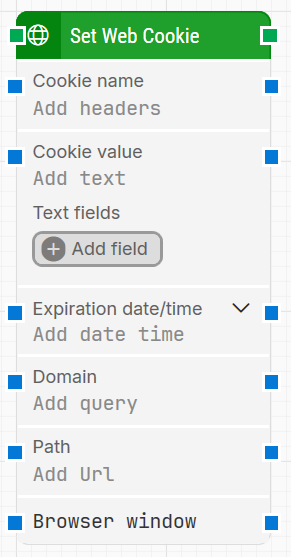
The Set Web Cookie block is used to set a named cookie in the current browser session. It is typically used to simulate login state, store preferences, or control feature flags before navigating to a page.
This block only works with browser windows that were previously opened using the Start Web Browser block or its “child” windows. Browsers started this way begin with empty history, cache, and cookies.
Fully expanded, the Set Web Cookie block shows the following properties:
Note: The screenshot on this page uses the Elegance Design, introduced in 2025.3. If you are using an earlier version, your layout may look different.
Quick-start
Drag Set Web Cookie onto the canvas.
Specify the basic cookie details, such Cookie name, Cookie value, Expiration date/time, Domain, Path, and if needed use Text fields for dynamic values and select the target Browser window.
Run the flow when it’s ready; the cookie is set before subsequent web-automation steps execute.
Building block parameters
Parameters
Block header: Shows the current name of the Set Web Cookie block. You can rename it by double-clicking the header and typing a new title. The green input connector starts execution when the flow reaches this block, and the green output connector triggers when the cookie has been set successfully.
Cookie name: Contains the name of the cookie to create or update. This value is required and should match the cookie name expected by the application.
Cookie value: Contains the value of the cookie to be set.
Can include tokens for dynamic field values.
Right-click in the field and choose Insert token to insert one or more Text fields as part of the value.
Text fields: Provides fields that can hold external or dynamic values to be used inside Cookie value.
Click Add field to define a new field.
After adding fields, right-click Cookie value, choose Insert token, and select the field name so its value is injected at runtime.
Expiration date/time: Defines when the cookie should expire.
You can set date and time together or expand the property to configure components such as year, month, day, hour, minute, and second separately.
Domain: Specifies the domain for which the cookie is valid (for example, example.com). This should match the domain of the site under test so the browser sends the cookie with the correct requests.
Path: Defines the path scope of the cookie (for example, / or /app). Only requests whose path matches this value will include the cookie.
Browser window: Selects the specific browser window the cookie should be applied to. When set, the block uses that window as the target session.
Multiple browser windows are not supported by Selenium Grid or external cloud providers such as Sauce Labs and BrowserStack, so in those environments you typically work with a single available window.