-
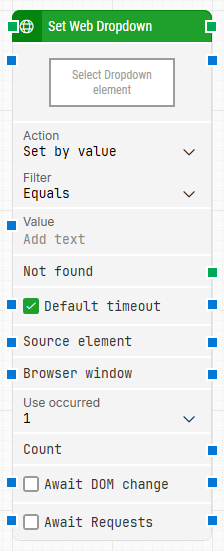
Block header: The block header displays the current name of the Set Web Dropdown block. You can rename it at any time by double-clicking the header and typing a new title, which helps keep flows readable and easier to maintain.
-
Select Dropdown element: The Select Dropdown element parameter contains the web element locator for the dropdown that you want to set. You can capture this locator by right-clicking the property and choosing Capture new web element.
Once a locator has been captured, you can modify it by right-clicking and selecting Edit web element, or clear it completely by choosing Clear web element.
-
Action: The Action parameter defines how the dropdown should be set. You can choose one of the following options:
-
Set by value: sets the dropdown option based on its underlying value attribute.
-
Set by text: sets the dropdown option based on the visible text shown to the user.
-
Set by index: sets the dropdown option by its position in the list.
-
Filter: The Filter parameter specifies the condition that the option must satisfy when the action is Set by value or Set by text.
-
Value: The Value parameter (referred to as Filter value in some documentation) holds the actual value used by the filter. This can be the text or value that the dropdown option must match according to the filter rule defined in Filter.
-
Not found: The Not found output is triggered if the dropdown web element cannot be located before the Timeout expires. You can use this output to branch the flow. For example, to route execution to a Fail block or to perform alternative logic when the expected dropdown is missing.
-
Default timeout: The Default timeout checkbox controls which timeout value is applied when searching for the dropdown. When this checkbox is not selected, the block uses a fixed timeout of 10 seconds unless you change the Timeout parameter manually. When the checkbox is selected, the block instead uses the default timeout value configured in the flow settings.
-
Timeout: The Timeout parameter defines the maximum amount of time the block should spend searching for the dropdown web element before giving up and triggering the Not found output.
This timeout is specific to this block. Note that every case also has a separate global timeout configured in the Settings panel; if the entire case runs longer than that global timeout, the case is cancelled regardless of the block’s own timeout value.
-
Source element: The Source element parameter restricts the web element locator so that it only searches within a particular container element. For example, if a previous block has already found a table element, you can set that table as the Source element so that this block searches for the dropdown only inside that table.
-
Browser window: The Browser window parameter lets you specify which browser window the block should use. By setting this property, you can be explicit about the window in scenarios where multiple browser windows or tabs are open.
-
Use occurrence: The Use occurrence parameter determines which occurrence of a matching option to use when more than one is found. You can choose among the following options:
-
A specific occurrence: for example, you can select the first, second, or another numbered match.
-
All: iterates through all matching occurrences. When All is selected, the following sub-properties become available to help track the iteration:
-
Count: The Count parameter exposes the total number of web elements found that match the locator specified in Select Dropdown element. This can be useful for validation or for making decisions later in the flow based on how many matches were found.
-
Await DOM change: The Await DOM change parameter delays the search for the dropdown web element until the page’s DOM has remained unchanged for a specified period of time. This is useful when background JavaScript is updating the page and you want to wait until those updates have finished.
-
Await Timeout (DOM): The Await Timeout (DOM) parameter defines, in seconds, how long the DOM must remain without changes before the block proceeds when Await DOM change is enabled. This value specifies the period of DOM stability required prior to searching for the dropdown.
-
Await Requests: The Await Requests parameter delays the search for the dropdown until there have been no active XHR (XMLHttpRequest) requests for a specified time. This is particularly helpful for enterprise web applications, such as Microsoft Dynamics 365 or Salesforce, that perform extensive background work with XHR and DOM updates, sometimes even replacing existing elements with new ones. Regardless of this setting, the action will still be executed after a maximum wait of 30 seconds.
-
Await Timeout: The Await Timeout (Requests) parameter defines, in seconds, how long there must be no active XHR requests before the block proceeds when Await Requests is enabled. This value sets the required period with no network activity before the dropdown is located and set.