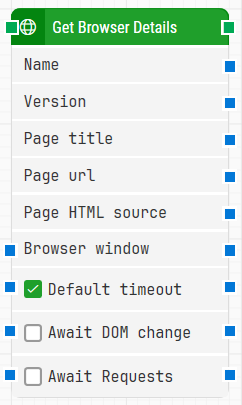
The Get Browser Details building block retrieves information from an open browser window, including the browser Name, Version, Page title, Page url, and the Page HTML source. This block only works with browser windows opened using Start Web Browser (or their child windows).
Fully expanded, the Get Browser Details block shows the following properties:
Note: The screenshot on this page uses the Elegance Design, introduced in 2025.3. If you are using an earlier version, your layout may look different.
Quick-start
Drag Get Browser Details onto the canvas.
Connect the block in the flow and use the outputs you need (Name, Version, Page title, Page url, Page HTML source). Optionally set Browser window only if you need to target a specific window, and configure Await DOM change / Await Requests if the page updates in the background.
Run the flow when it’s ready.
Building block parameters
Parameters
Block header: The green input connector triggers the block to start executing. The green output connector triggers when the browser details have been retrieved. You can rename the block by double-clicking the header text and typing a new title.
Name: Outputs the browser name of the open browser window.
Version: Outputs the browser version of the open browser window.
Page title: Outputs the page title of the open browser window.
Page url: Outputs the page URL (web address) of the open browser window.
Page HTML source: Outputs the entire HTML source of the currently loaded page.
Browser window: Specifies which browser window to read details from.
Multiple browser windows are not supported by Selenium Grid or external cloud providers such as Sauce Labs and BrowserStack.
Default timeout: Controls whether the block uses the default timeout from the flow settings or a custom timeout value.
Timeout (sec): Sets the maximum time spent retrieving the browser details before the block gives up and times out. This field is used when Default timeout is not selected.
Await DOM change: Delays retrieving the browser details until there have been no changes to the page’s DOM for a specified period (for example, three seconds). Regardless of this checkbox, the block proceeds after waiting a maximum of 30 seconds.
Await Timeout: Sets how many seconds the DOM must have had no changes before proceeding.
Await Requests: Delays retrieving the browser details until there have been no active XHR requests for a specified period (for example, three seconds). This is useful for applications that update heavily in the background (including Microsoft Dynamics 365 and Salesforce). Regardless of this checkbox, the block proceeds after waiting a maximum of 30 seconds.