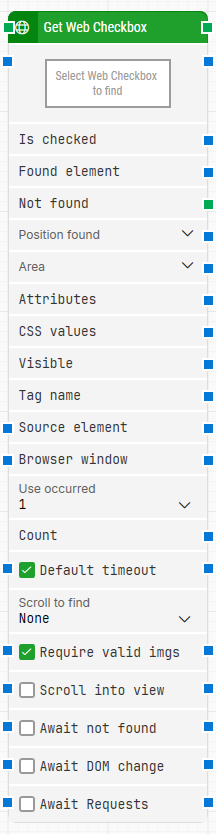
-
Block header: The green input connector triggers the block to start executing. The green output connector in the header triggers when the block has completed. You can rename the block title by double-clicking it and typing in a new title.
-
Select Web Checkbox to find: This property contains the locator for the checkbox web element whose state you want to read.
-
Is checked: Returns the state of the checkbox as True/False (True = checked, False = unchecked).
-
Found element: Contains the found web element in the browser window, which can be used as a source element in other building blocks to narrow down later searches (for example, inside a table).
-
Not found: This output triggers if the web element is not found before the timeout. This is typically used to branch execution flow or to explicitly fail a case by linking it to a Fail block.
-
Position found: The browser canvas position where the web element was found in X, Y coordinates (top-left is 0, 0). Use the expander to work with X and Y separately. Web elements that are not visible (for example hidden by CSS) will have position 0, 0.
-
Area found: The browser canvas position and size of the found web element in X, Y, Width, Height coordinates, starting with the upper-leftmost pixel. Use the expander to work with position/size and nested sub-properties separately.
-
Attributes: A list of all attributes on the found web element as key–value pairs (including standard HTML attributes such as class/style/href and custom data-xxx attributes). For direct attribute lookup, the Get Web Attribute building block can be useful.
-
CSS values: Currently unused.
-
Visible: Returns True if the found web element is visible.
-
Tag name: The tag name of the found web element (for example div, tr, button, or input).
-
Source element: Limits the locator to only search inside the specified source element (for example, searching for a specific tr/td inside a previously found table element).
-
Browser window: Makes the block use a specific browser window. Multiple browser windows are not supported by Selenium Grid or external cloud providers such as Sauce Labs and BrowserStack.
-
Use occurred: Selects which occurrence of the web element to use when more than one match is found. Select All to iterate through all occurrences (this shows Current index and Completed).
-
Count: Contains the total number of found web elements that match the locator.
-
Current index: When iterating through all occurrences, contains the current index (for example 1, then 2, then 3).
-
Completed: This output triggers when the iteration of all occurrences has completed.
-
Default timeout: If the checkbox is not selected, the timeout is 10 seconds. If the checkbox is selected, the Default timeout value from the flow settings applies.
-
Timeout: The maximum time spent searching for the web element before giving up and triggering Not found. This is separate from the case global timeout in Settings, which can cancel a run if the whole case exceeds it.
-
Scroll to find: When set to a value other than None, the block uses scrolling while searching for the web element. This can be useful for scrollable pages where elements load asynchronously (for example infinite scroll).
-
Max repeats: The maximum number of scroll actions to perform before giving up searching for the web element.
-
Amount: The amount of scrolling performed on each scroll repeat.
-
Delay (sec): The delay in seconds between each scroll amount.
-
Require valid imgs: When checked, any locator that targets an image (img tag) also validates that the image loads correctly by sending an HTTP request to the image source and verifying a 200 response.
-
Scroll into view: Scrolls the page to bring the found element into view.
-
Await not found: Waits for the element to not be found before continuing.
-
Await DOM change: Delays the search until there have been no changes to the page’s DOM for a specified period (for example, 3 seconds). Regardless of this checkbox, the search proceeds after waiting a maximum of 30 seconds.
-
Await Timeout: The number of seconds the DOM must have had no changes before proceeding.
-
Await Requests: Delays the search until there have been no active XHR requests for a specified period (for example, 3 seconds). Regardless of this checkbox, the search proceeds after waiting a maximum of 30 seconds.
-
Await Timeout: The number of seconds no XHR requests must have been active before proceeding.