
Drag Web Element‎

The Drag Web Element block is used to drag a web element with the mouse from one place to another in an open browser window. It simulates a drag-and-drop interaction by starting the drag on a source element and dropping it on a destination element.

This block only works with browser windows that were opened using the Start Web Browser block or their child windows.

Fully expanded, the Drag Web Element block shows the following properties:
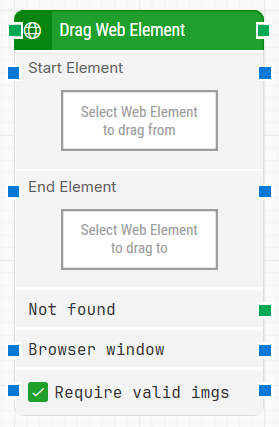
image-20260112-102641.png

Note: The screenshot on this page uses the Elegance Design, introduced in 2025.3. If you are using an earlier version, your layout may look different.

Quick-start

  1. Drag Drag Web Element onto the canvas.

  2. Capture the Start element and End element (both required), then optionally configure Browser window and Require valid imgs.

  3. Run the flow when it’s ready.

For a minimal setup, set Start element to the element you want to drag from and End element to the element you want to drop onto, then run the flow with default settings.

Building block parameters

Parameters
  • Block header: Shows the current name of the Drag Web Element block. You can rename it at any time by double-clicking the header and typing a new title to keep flows readable and organized.

  • Start element: Contains the locator for the web element where the drag action starts. This parameter must be set.

    • Right-click and select Capture new web element to define the locator.

    • Right-click and select Edit web element to adjust an existing locator.

    • Right-click and select Clear web element to remove it.

  • End element: Contains the locator for the web element that will receive the dropped element. The block drags from Start element and releases over End element. This parameter must be set.

  • Not found: Triggers if either the start or end web element cannot be found before the timeout. This output is typically used to branch the execution flow or to explicitly fail a case by connecting it to a Fail block.

  • Browser window: Specifies which browser window the block should operate on. When left empty, the block uses the default browser window for the flow.
    Multiple browser windows are not supported by Selenium Grid or external cloud providers such as Sauce Labs and BrowserStack, so this value usually refers to the single window opened by Start Web Browser.

  • Require valid imgs: When selected, any web element locator that targets an image (img tag) will also validate that the image has loaded correctly. Leapwork checks this by sending an HTTP request to the image source and verifying that it returns a 200 response.

Resources

Topic

Description

Flows FAQ

Common questions about creating, running, and managing flows in Leapwork.

Flows Troubleshooting

Guidelines and solutions for identifying and fixing issues that occur when building or running flows in Leapwork.

Strategy Editor

Guidelines for understanding and using the Strategy Editor in Leapwork to define, refine, and validate robust locator strategies for UI elements using DOM structure, tokens, and wildcards.