The Start Web Browser building block opens a new browser window for web automation, navigates to the specified Web address (URL), and outputs a Browser window handle for downstream web blocks. The next web building block will only start executing on the loaded page when the client-side DOM Ready event triggers.
This block supports multiple browsers and lets you control window mode, device emulation (Chrome), browser startup options, and whether the automation is driven via Selenium or browser extension/plugins (Chrome/Edge).
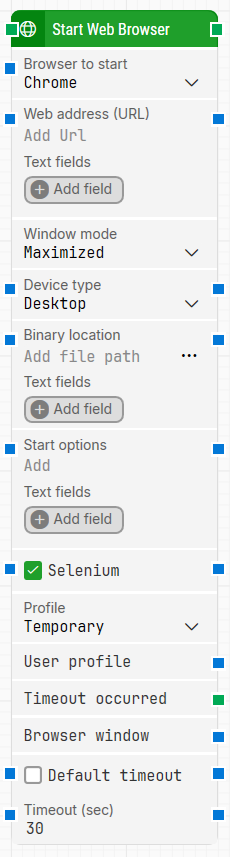
Fully expanded, the Start Web Browser block shows the following properties:
Note: The screenshot on this page uses the Elegance Design, introduced in 2025.3. If you are using an earlier version, your layout may look different.
Quick-start
Drag Start Web Browser onto the canvas.
Connect the block in the flow and specify Browser to start and Web address (URL). Optionally set Window mode, Device type (Chrome only), Start options, and profile-related settings, then configure timeout-related settings if needed.
Run the flow when it’s ready.
Building block parameters
Parameters
Block header: The green input connector triggers the block to start executing. The green output connector triggers when the browser has been opened and the URL has loaded. You can rename the block by double-clicking the header text and typing a new title.
Browser to start: Selects which browser type to start.
Chrome: Automation in Google Chrome.
Edge: Automation in Chromium Edge (version 19 and above).
Firefox: Automation in Mozilla Firefox.
Edge (IE mode): Executes automation using IE mode in Edge for IE-based applications.
IE: Automation in Microsoft Internet Explorer.
Web address (URL): The URL to navigate to. This field can contain tokens from Text fields. Examples of valid formats include http://domain, https://domain, domain, and an IP address such as xxx.xxx.xxx.xxx.
Text fields: Stores key–value pairs that can be inserted as dynamic tokens into Web address (URL) via Insert token.
Window mode: Controls how the browser window is displayed during execution.
Normal: Opens the browser in its last known state.
Maximized: Opens and maximizes the browser window.
Minimized: Opens the browser minimized.
Window mode is not supported by Selenium Grid or external cloud providers such as Sauce Labs and BrowserStack.
Device type: Allows device emulation when Browser to start is set to Chrome.
Desktop: Automate as a desktop browser.
Phone / Tablet / Laptop: Choose a predefined device from the dropdown.
Custom: Define a custom device by specifying width, height, pixel rate, and user agent. Landscape/portrait behavior can be achieved by switching width and height.
Binary location: Lets you provide a non-standard location for the Chrome binary (for example, Chromium installed in a non-default path). This setting is supported for Chrome only.
Text fields: Stores key–value pairs that can be inserted as dynamic tokens into Binary location via Insert token.
Start options: Adds special launch options for the browser (supported for Chrome, Edge, and Firefox). Examples include --start-maximized, --ignore-certificate-errors, --disable-popup-blocking, and --incognito.
Text fields: Stores key–value pairs that can be inserted as dynamic tokens into Start options via Insert token.
Selenium: Controls how Leapwork drives the browser automation.
When enabled, the browser uses Selenium framework elements to drive actions such as click, find element, and inspect.
When disabled (Chrome/Edge), automation uses Chromium Extension Framework elements (browser extension/web plugin approach). This can be faster and reduces maintenance related to browser updates. Bulk update can be used to update existing test cases, or blocks can be updated one-by-one (applies to Chrome and Edge only).
Profile: Selects which browser profile to use.
Temporary: Uses a temporary profile with clear history, imitating a first-time visitor. The profile is deleted after the flow completes.
Existing: Uses an existing profile with predefined data, including cookies, cache, and logged-in session data.
Last used: Only available when Selenium is disabled. Loads the last used user profile for the selected browser.
User profile: The local path to a browser profile to use when specific plug-ins, extensions, or bookmarks are required.
Example structure: C:\Users\<user>\AppData\Roaming\Mozilla\Firefox\Profiles\<profile>\
Similar paths apply for Chrome and Edge under each browser’s user data folder.
Text fields: Stores key–value pairs that can be inserted as dynamic tokens into User profile via Insert token.
Timeout occurred: Triggers if the browser is not started or the URL is not loaded within the configured timeout.
Browser window: Outputs a handle to the browser window once opened and active. Use this handle to direct other web building blocks to operate on a specific window. Multiple browser windows are not supported by Selenium Grid or external cloud providers such as Sauce Labs and BrowserStack.
Default timeout: Controls whether the block uses the default timeout from the flow settings or a custom timeout value.
Timeout (sec): Sets the maximum time allowed to open the browser window and navigate to the URL before the block gives up and triggers Timeout occurred. This field is used when Default timeout is not selected.
Note: All cases have a global timeout configured in the Settings panel. This is unrelated to the timeout of a single building block. However, a running case will automatically be cancelled if it runs for longer than the global timeout.