-
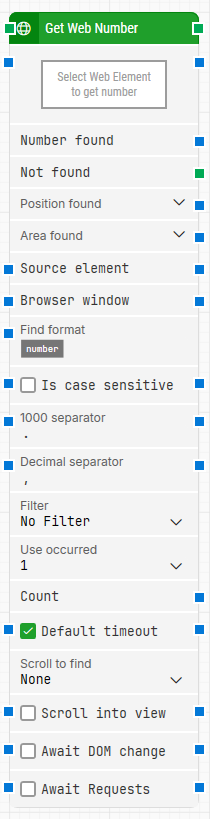
Block header: The green input connector triggers the block to start executing. The green output connector triggers when a number has been successfully found. You can rename the block title (“Get Web Number”) by double-clicking it and typing in a new title.
-
Select Web Element to get number: The locator for the web element from which the number should be extracted. You can capture a locator by right-clicking and selecting Capture new web element, edit it via Edit web element, and clear it via Clear web element.
-
Number found: The number that was found.
-
Not found: Triggers if a number is not found before the timeout. This is typically used to branch execution flow or to explicitly fail a case by linking it to a Fail block.
-
Position found: The browser canvas position where the number was found in X, Y coordinates (top-left is 0, 0). Use the expander to work with X and Y separately. Web elements that are not visible (for example hidden by CSS) will have position 0, 0.
-
Area found: The browser canvas position and size of the found number in X, Y, Width, Height coordinates, starting with the upper-leftmost pixel. Use the expander to work with position/size and nested sub-properties separately.
-
Source element: Limits the locator to only search inside the specified source element (for example, searching for numbers inside a previously found table element).
-
Browser window: Makes the block use a specific browser window. Multiple browser windows are not supported by Selenium Grid or external cloud providers such as Sauce Labs and BrowserStack.
-
Find format: Defines a format the number must match to be retrieved. For example, with Price: [NUMBER] USD, only numbers inside text like Price: 123.00 USD are retrieved.
-
Is case sensitive: Controls whether Find format is case sensitive. By default, it is case-insensitive.
-
1000 separator: Defines the character used to separate thousands. By default, this uses Flow’s Windows regional settings (typically “,” or “.”).
-
Decimal separator: Defines the character used to separate decimals. By default, this uses Flow’s Windows regional settings (typically “,” or “.”).
-
Filter: Defines an additional rule the number must meet to be retrieved (for example, only retrieve numbers Greater than 100).
-
Filter value: The value used by Filter.
-
Use occurred: Selects which occurrence of the number to use when more than one is found. Select All to iterate through all occurrences (this shows Current index and Completed).
-
Current index: When iterating through all occurrences, contains the current index for the number being processed.
-
Completed: Triggers when the iteration of all occurrences has completed.
-
Count: The total number of found occurrences that match the configured locator and criteria.
-
Default timeout: If the checkbox is not selected, the timeout is 10 seconds. If the checkbox is selected, the Default timeout value from the flow settings applies.
-
Timeout: The maximum time spent searching for a number before giving up and triggering Not found. This is separate from the case global timeout in Settings, which can cancel a run if the whole case exceeds it.
-
Scroll to find: When set to a value other than None, the block uses scrolling while searching for numbers. This can be useful for scrollable pages where elements load asynchronously (for example infinite scroll).
-
Max repeats: The maximum number of scroll actions to perform before giving up searching for numbers.
-
Amount: The amount of scrolling performed on each scroll repeat.
-
Delay (sec): The delay in seconds between each scroll amount.
-
Scroll into view: When checked, the web element containing the found number is automatically scrolled into view.
-
Await DOM change: Delays the search until there have been no changes to the page’s DOM for a specified period (for example, 3 seconds). Regardless of this checkbox, the search proceeds after waiting a maximum of 30 seconds.
-
Await Requests: Delays the search until there have been no active XHR requests for a specified period (for example, 3 seconds). Regardless of this checkbox, the search proceeds after waiting a maximum of 30 seconds.