
Drag Electron Element

The Drag Electron Element block is used in Electron UI automation to drag one Electron element onto another within an already open Electron application window. It simulates a drag-and-drop interaction by starting the drag on a source element and releasing it over a destination element.

When fully expanded, the following is an example of the Drag Electron Element block
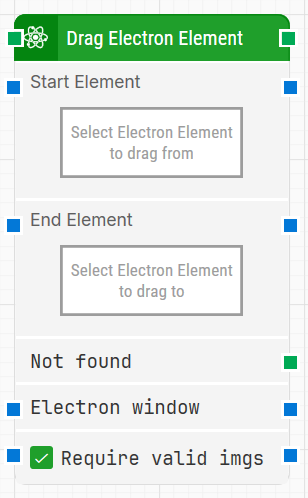
image-20260112-095736.png

Note: The screenshot on this page uses the Elegance Design, introduced in 2025.3. If you are using an earlier version, your layout may look different.

Quick-start

  1. Drag Drag Electron Element onto the canvas.

  2. Capture the Start Element and End Element (both required) and optionally configure Electron window and Require valid images as needed.

  3. Run the flow when it’s ready.

For a minimal setup, set Start Element to the element you want to drag from and End Element to the element you want to drop onto, then run the flow.


Building block parameters

Parameters
  • Block header: Shows the current name of the Drag Electron Element block. You can rename it at any time by double-clicking the header and typing a new title to keep flows readable and organized.

  • Start Element: Contains the locator for the Electron element from which the mouse drag action will start.
    An Electron element locator can be captured by right-clicking the field and selecting Capture new Electron element. You can clear the locator by right-clicking and choosing Clear Electron element.

  • End Element: Contains the locator for the Electron element that is the destination of the drag action. The block will drag from Start Element and drop onto this End Element.

  • Not found: Triggers if either the start or end Electron element cannot be found before the block finishes its search. You can use this output to branch the flow or to handle the situation where the drag-and-drop operation cannot be performed.

  • Electron window: Holds a handle to the Electron window that the block should work in. Once an Electron window is found and focus is set, this property can be used to direct other Electron blocks to use the same window, which is especially useful when multiple Electron windows are open during a test run.

  • Require valid images: When selected, any Electron element locator that is configured to find an image (img tag) will also validate that the image has loaded correctly. This helps ensure that drag-and-drop operations are performed only on elements whose images are actually available and visible.

Resources

Topic

Description

Flows FAQ

Common questions about creating, running, and managing flows in Leapwork.

Flows Troubleshooting

Guidelines and solutions for identifying and fixing issues that occur when building or running flows in Leapwork.

Electron Troubleshooting

Guidance and solutions for diagnosing and resolving issues related to Electron-based automation and environments