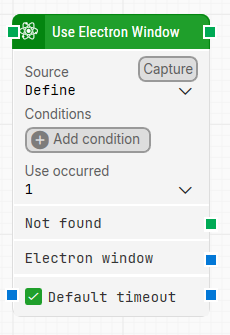
The Use Electron Window block is used in Electron UI automation to locate and focus a specific Electron window, then expose a handle to that window so other Electron blocks in the flow can target it. This is especially useful when multiple Electron windows are open and you need to direct interactions to a particular one.
When fully expanded, the following is an example of the Use Electron Window block:
Note: The screenshot on this page uses the Elegance Design, introduced in 2025.3. If you are using an earlier version, your layout may look different.
Quick-start
Drag Use Electron Window onto the canvas.
Choose a Source (for example, Define or Element), configure any Conditions and Use occurred, and optionally adjust Default timeout.
Run the flow when it’s ready so the matching Electron window is found and made available via Electron window for subsequent blocks.
Building block parameters
Parameters
Block header: Shows the current name of the Use Electron Window block. You can rename it at any time by double-clicking the header and typing a new title to keep flows readable and organized.
Source: Determines how the Electron window is identified. You can either:
Define the criteria directly in this block (for example, using conditions), or
Select Element, in which case the Electron element locator is limited to work inside a previously provided source element.
Conditions: Used together with Source to specify how the target Electron window should be selected. You can add one or more conditions that the window must meet.
Use occurred / Use occurrence: Selects which occurrence to use when more than one Electron window matches the specified source and conditions.
Choose a specific index to work with a single match.
Select All to iterate through all matching windows.
Not found: Triggers if a matching Electron window is not found before the timeout elapses. This output is typically used to branch the execution flow or explicitly fail a case by connecting it to a Fail block.
Electron window: Contains a handle to the Electron window once it has been found and focus has been set. You can pass this handle to other Electron blocks so they operate on the same window, which is useful when multiple windows are open in the same test run.
Default timeout: Controls how long the block will search for a matching Electron window:
When the checkbox is not selected, the timeout value is set to 10 seconds unless you change it manually.
When the checkbox is selected, the block uses the Default timeout value defined in the flow settings (under Max. run time).