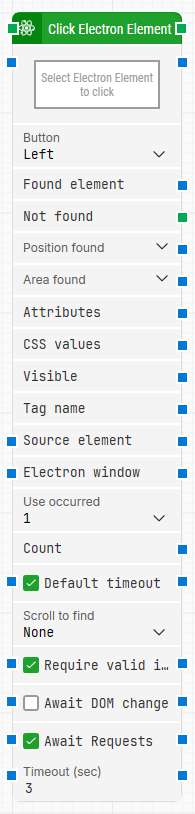
The Click Electron Element block simulates a mouse click on a target UI element within an Electron-based desktop application. This block is commonly used in automated tests where interaction with custom components is required, such as buttons, table cells, or icons rendered in Electron.
Fully expanded, the Click Electron Element block shows the following properties:
Note: The screenshot on this page uses the Elegance Design, introduced in 2025.3. If you are using an earlier version, your layout may look different.
Quick-start
Drag Click Electron Element onto the canvas.
Connect the block in the flow and optionally configure parameters such as Button, Use occurrence, Scroll to find, Require valid images, Await DOM change, or Timeout.
Run the flow when it’s ready.
Building block parameters
Parameters
Block header: Shows the current name of the Click Electron Element block. You can rename it by double-clicking the header and typing a new title.
Button: Defines the type of mouse interaction to perform. Options include:
Left (default): Performs a single left-click.
Right: Performs a right-click.
Double Left: Performs a double-click with the left mouse button.
Double Right: Performs a double-click with the right mouse button.
Found element: Returns the located Electron element. This can be reused as a Source element in other blocks to narrow down searches to sub-elements.
Not found: Triggers if the Electron element is not found before the timeout expires. Use this to handle errors or trigger fallback actions in the flow.
Position found: Returns the X and Y screen coordinates where the element was located. The origin (0,0) is the top-left corner of the application canvas.
Area found: Returns the position and size (X, Y, Width, Height) of the found element on the canvas.
Attributes: Provides all attributes of the found Electron element as key–value pairs. This includes both standard HTML attributes (e.g., class, href, style) and custom attributes (data-*).
CSS values: Currently unused. Present for future compatibility.
Visible: Returns true if the Electron element is visible on the UI.
Tag name: Returns the HTML tag of the found Electron element (e.g., div, input, button).
Source element: Optionally restricts the search to a specific parent element, limiting the locator’s scope. This is useful when similar elements appear multiple times in different areas.
Electron window: Contains the handle to the specific Electron window to interact with. Required in scenarios with multiple windows. The block uses this to target the correct context.
Use occurrence: Determines which matching element to interact with when multiple elements match the locator.
Enter a number (e.g., 1) to select a specific match.
Use “All” to iterate through all matches (commonly used with loops).
Count: Returns the number of elements that match the locator configuration.
Default timeout: Controls how long the block waits for the element to appear:
If unchecked, the timeout is fixed to 10 seconds (unless manually changed).
If checked, the timeout uses the Max. run time setting from the flow configuration.
Scroll to find: Defines whether the block should scroll in order to find the element.
Default is None (no scrolling).
Other values enable scrolling behavior when elements are off-screen.
Require valid images: If enabled, the block will only consider an img element found if the image has been loaded successfully.
Await DOM change: Waits until the application's DOM has remained unchanged for a short period (e.g., 3 seconds) before executing the search and click.
This is helpful when the application is updating content dynamically using JavaScript.
Await Requests: Waits until no active XHR (AJAX) requests are detected for a short period before continuing.
Both Await DOM change and Await Requests delay the search but still enforce a maximum wait time of 30 seconds.
Timeout (sec): Defines how many seconds to wait before triggering Not found, if Default timeout is unchecked.