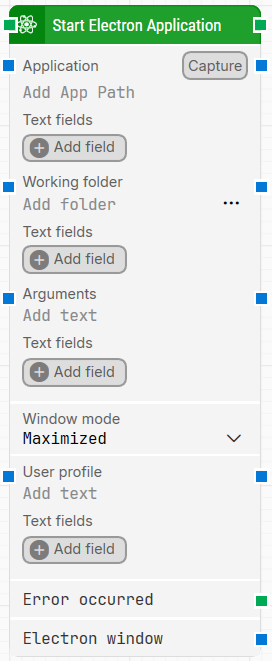
The Start Electron Application building block starts an Electron application and returns a handle to the Electron window so subsequent Electron blocks can target that window.
Fully expanded, the Start Electron Application block shows the following properties:
Note: The screenshot on this page uses the Elegance Design, introduced in 2025.3. If you are using an earlier version, your layout may look different.
Quick-start
Drag Start Electron Application onto the canvas.
Connect the block in the flow and specify the basic parameters required for this block to operate: Application. Optionally, you can adjust other parameters if needed.
Run the flow when it’s ready.
Building block parameters
Parameters
Block header: The green input connector triggers the block to begin execution. The green output connector triggers when an Electron application is successfully started. You can rename the block by double-clicking the header text and typing in a new title.
Application: The application to start when the block executes. This should contain the path to the program’s .exe file. The value can be relative to Working folder or it can be a full path. Using Capture lets you select an already open application/window or a shortcut that points to an application and captures the needed information into Leapwork.
Text fields: Fields that enable the use of external values (dynamic data) in Application. To use a value, right-click the field above where the application path can be entered, select Insert token, and insert the field name. Fields can be renamed by double-clicking them, and inserted tokens update their visual appearance accordingly.
Working folder: Sets the base directory for running the command, so paths in Application can be relative to this folder instead of fully qualified.
Text fields: Fields that enable the use of external values in Working folder. To use a value, right-click and select Insert token, then insert the field name. Fields can be renamed by double-clicking them, and inserted tokens update their visual appearance accordingly.
Arguments: Parameters supplied to the program when it is invoked.
Text fields: Fields that enable the use of external values in Arguments. To use a value, right-click and select Insert token, then insert the field name. Fields can be renamed by double-clicking them, and inserted tokens update their visual appearance accordingly.
Window mode: Controls whether the application window starts as Normal, Maximized, or Minimized.
User profile: Includes the user name.
Text fields: Reflects the configured User profile.
Error occurred: Triggers if Start Electron Application returns an error during execution, so you can branch your flow.
Electron window: Contains a handle to the Electron window once it is found and focus is set. You can pass this to other Electron building blocks to direct them to a specific window when multiple windows are open.