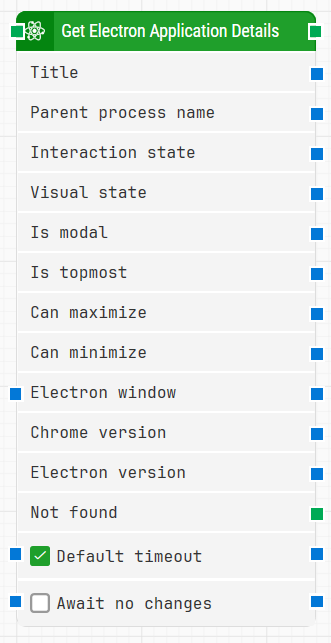
The Get Electron Application Details block reads key properties from an open Electron application window, such as its title, process information, visual state, and Electron/Chrome version. The collected values can be used elsewhere in the flow for validation, branching, or logging.
When fully expanded, the following is an example of the Get Electron Application Details block:
Note: The screenshot on this page uses the Elegance Design, introduced in 2025.3. If you are using an earlier version, your layout may look different.
Quick-start
Drag Get Electron Application Details onto the canvas.
Connect the block in the flow and optionally configure parameters such as Electron window, Default timeout, Await no changes.
Run the flow when it’s ready.
For a minimal setup, place the block after the step that opens or activates the Electron window and run the flow with the default timeout settings.
Building block parameters
Parameters
Block header: Shows the current name of the Get Electron Application Details block. You can rename it at any time by double-clicking the header and typing a new title to keep flows readable and organized.
Title: Returns the title of the open Electron application window.
Parent process name: Contains the name of the parent process that owns the Electron application window.
Interaction state: Provides the interaction state of the open application window (for example, whether it can currently receive user input).
Visual state: Returns the visual state of the window, such as whether it is normal, minimized, or maximized.
Is modal: Indicates whether the application window is a modal dialog. The value is true when the window must be completed and closed before the user can return to its owner window.
Is topmost: Returns true if the application window is currently the topmost window on the desktop.
Can maximize: Indicates whether the application window can be maximized. The value is true when maximizing is supported.
Can minimize: Indicates whether the application window can be minimized. The value is true when minimizing is supported.
Electron window: Holds a handle to the Electron window that the block should inspect. Once an Electron window is found and focus is set, this property contains that handle, which can then be passed to other Electron blocks so they operate on the same window, useful when multiple windows are open in a test run.
Chrome version: Returns the version of the Chromium engine used by the running Electron application.
Electron version: Returns the Electron runtime version used by the application window.
Not found: Triggers if the target Electron window cannot be found before the timeout expires. This output is typically used to branch the flow or explicitly fail a case by connecting it to a Fail block.
Default timeout: Controls how the timeout is determined:
When the checkbox is not selected, the timeout is set to 10 seconds unless you change it manually in Timeout (if exposed) or in the block configuration.
When the checkbox is selected, the block uses the Default timeout value defined in the flow settings (under Max. run time).
Await no changes: When selected, instructs the block to wait for a period with no visible screen changes before looking for the specified Electron window. This helps ensure the UI has settled before details are fetched. The maximum wait is still bounded by the configured timeout.