-
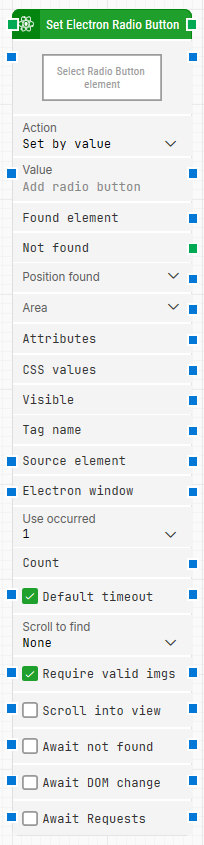
Block header: Shows the current name of the Set Electron Radio Button block. You can rename it at any time by double-clicking the header and typing a new title to keep flows readable and organized.
-
Select Radio Button element: Holds the locator for the radio button to be set.
-
Action: Defines how the radio button should be selected. You can choose to set the radio button by value, by text, or by index, depending on how the options are represented in the UI.
-
Value: When Action is set to Set by value, Set by index, or Set by text, this field contains the corresponding value, index, or text used to select the radio button option.
-
Found element: Contains the Electron element that was found in the application window. This can be passed to other blocks as a source element, for example to narrow searches to a particular region or component.
-
Not found: Triggers if the Electron element cannot be found before the timeout expires. This output is typically used to branch the flow or explicitly fail a case by connecting it to a Fail block.
-
Position found: Returns the application canvas position where the Electron element was found, as X, Y coordinates. The top-left corner of the application canvas is position 0, 0.
-
Area: Returns the position and size of the found Electron element as X, Y, Width, Height coordinates, starting from the upper-leftmost pixel. The top-left corner of the screen is position 0, 0.
-
Attributes: Provides a list of all attributes on the found Electron element as key–value pairs. This includes standard HTML attributes such as class, style, href as well as any custom attributes like data-xxx.
For more direct work with attributes, the Get Electron Attribute block is recommended.
-
CSS values: Currently unused. It is reserved for future use with CSS-related data from the element.
-
Visible: Returns True if the found Electron element is visible.
-
Tag name: Contains the tag name of the found Electron element (for example, div, tr, button, input).
-
Source element: Lets you control how the locator is scoped. You can either define the source directly or select the Element option, which limits the Electron element locator to work only inside the specified source element. This is useful when targeting radio buttons within a specific container or region.
-
Electron window: Holds a handle to the Electron window where the radio button is located. Once a window is found and focus is set, this property can be reused by other Electron blocks to ensure they operate on the same window, which is helpful when multiple windows are open during a test run.
-
Use occurrence: Specifies which occurrence of the Electron element to use when more than one match is found.
-
Count: Contains the total number of Electron elements that match the locator defined in Select Radio Button element.
-
Default timeout: Controls how the timeout for this block is determined:
-
When the checkbox is not selected, the timeout is set to 10 seconds, unless you change it manually.
-
When the checkbox is selected, the block uses the Default timeout value defined in the flow settings (under Max. run time).
-
Scroll to find: When set to a value other than None, the block will use scrolling while searching for the Electron element. This helps when the element may not be visible until the content is scrolled.
-
Require valid imgs: When selected, any Electron element locator that targets an image (img tag) will also validate that the image actually loads correctly before using it.
-
Scroll into view: When selected, automatically scrolls any found Electron element into view in the application window before attempting to set the radio button.
-
Await not found: When selected, the block assumes that the Electron element is currently present and waits until it can no longer be found before proceeding. This is useful when you expect the element to disappear as part of the flow.
-
Await DOM change: Delays the search for the Electron element until there have been no changes to the application’s DOM for a specified period of time (for example, three seconds). This can be helpful when waiting for behind-the-scenes JavaScript updates. Regardless of this setting, the search and selection will occur after waiting a maximum of 30 seconds.
-
Await Requests: Delays the search for the Electron element until there have been no active XHR requests for a specified period of time (for example, three seconds). Regardless of this setting, the search and selection will occur after waiting a maximum of 30 seconds.