-
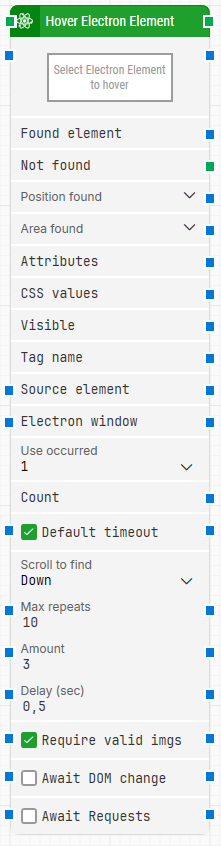
Block header: The green input connector triggers the block to begin execution. The green output connector triggers when an Electron element is successfully hovered over. You can rename the block by double-clicking the header text and typing a new title.
-
Select Electron Element to hover: Contains the locator for the Electron element to hover. You can capture a locator by right-clicking and selecting Capture new Electron element, and you can remove it by right-clicking and selecting Clear Electron element.
-
Found element: Contains the Electron element that was found in the application window. You can use it as a source element in other building blocks to narrow down later element searches (for example, when targeting table cells).
-
Not found: Triggers if the Electron element is not found before the timeout. This is typically used to branch the flow or to fail a case by connecting it to a Fail block.
-
Position found: The application canvas position where the element was found, in X, Y coordinates (top-left of the application canvas is 0, 0).
-
Area found: The position and size of the found element in X, Y, Width, Height coordinates, starting at the element’s upper-left pixel.
-
Attributes: A list of all attributes on the found element as key–value pairs, including standard HTML attributes (for example class, style, href) and custom attributes (for example data-xxx). For direct attribute lookup, the Get Electron Attribute building block is recommended.
-
CSS values: Currently unused.
-
Visible: Returns True if the found Electron element is visible.
-
Tag name: The tag name of the found Electron element (for example div, tr, button, or input).
-
Source element: Lets you limit the locator to only search inside a specific source element by selecting the Element option, so the locator applies within that source element rather than the whole window.
-
Electron window: Contains a handle to the Electron window once a window has been found and focus is set. This can be used to direct other building blocks to a specific window when multiple windows are open.
-
Use occurred: Selects which occurrence of the Electron element to use when multiple matches are found. Select All to iterate through all occurrences.
-
Count: Contains the total number of found Electron elements that match the locator.
-
Default timeout: Controls whether the block uses the flow’s default timeout or a fixed timeout. If the checkbox is not selected, the timeout is 10 seconds unless changed manually. If the checkbox is selected, the flow’s Default timeout under Max. run time applies.
-
Scroll to find: When set to a value other than None, the block uses scrolling while searching for the Electron element.
-
Require valid images: When selected, any Electron element locator that targets an image (img tag) also verifies that the image loads correctly.
-
Await DOM change: Delays the search until there have been no changes to the application’s DOM for a specified period (for example, three seconds). This is useful when waiting for behind-the-scenes JavaScript updates. Regardless of this checkbox, the search proceeds after waiting a maximum of 30 seconds.
-
Await Requests: Delays the search until there have been no active XHR requests for a specified period (for example, three seconds). Regardless of this checkbox, the search proceeds after waiting a maximum of 30 seconds.