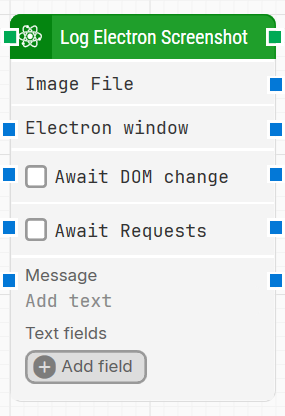
The Log Electron Screenshot block captures a screenshot of an Electron application window and logs it as part of the run. The captured image is provided as an output file that can be reused in other blocks that accept image files.
Fully expanded, the Log Electron Screenshot block shows the following properties:
Note: The screenshot on this page uses the Elegance Design, introduced in 2025.3. If you are using an earlier version, your layout may look different.
Quick-start
Drag Log Electron Screenshot onto the canvas.
Connect the block in the flow and optionally specify the basic parameters required for this block to operate: Electron window. If needed, enable Await DOM change and/or Await Requests. Optionally provide Message and Text fields.
Run the flow when it’s ready.
Building block parameters
Parameters
Block header: The green input connector triggers the block to start executing. The green output connector triggers when the screenshot is successfully logged. You can rename the block by double-clicking the header text and typing a new title.
Image File: Outputs the captured screenshot as a PNG file. You can pass this output into other blocks or components that support image files.
Electron window: Contains a handle to the Electron window once it is found and focused. Use this when multiple windows are open to direct the screenshot capture to a specific window.
Await DOM change: Delays the block execution until there have been no changes to the page’s DOM for a specified period (for example, three seconds). This is useful when waiting for behind-the-scenes JavaScript updates. Regardless of this checkbox, the block proceeds after waiting a maximum of 30 seconds.
Await Requests: Delays the block execution until there have been no active XHR requests for a specified period (for example, three seconds). This is useful for applications that update heavily in the background (including Dynamics 365 and Salesforce). Regardless of this checkbox, the screenshot is taken after waiting a maximum of 30 seconds.
Message: Optionally adds a custom message to the log entry associated with the screenshot (maximum 250 characters). This message appears in the keyframe during runtime. The field is hidden in the collapsed view, and it supports both typed input and dynamic values through connectors. Available from 2025.3.0 onward.
Text fields: Stores key–value pairs that let you insert dynamic tokens into Message (and other token-enabled fields). To insert a value, right-click inside Message and select Insert token, then choose the field name. Fields can be renamed by double-clicking them, and any existing tokens update automatically. Available from 2025.3.0 onward.