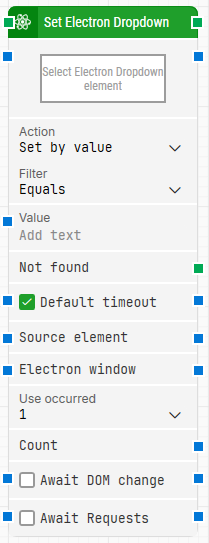
The Set Electron Dropdown building block is used to select a value in an Electron dropdown element during Electron automation. It lets you choose how the selection should be made (for example, by value) and optionally apply a filter so Leapwork selects the intended dropdown item at runtime.
Fully expanded, the Set Electron Dropdown block shows the following properties:
Note: The screenshot on this page uses the Elegance Design, introduced in 2025.3. If you are using an earlier version, your layout may look different.
Quick-start
Use the Electron Recorder to capture a dropdown interaction so Flow generates Set Electron Dropdown, or drag the block into your flow.
In Select Electron Dropdown element, capture the dropdown you want to interact with.
In Action, choose how the option should be selected.
(Optional) Configure Default timeout / Timeout (sec) and any context options such as Source element or Electron window.
Run the flow and handle the Not found output if needed.
Building block parameters
Parameters
Block header: Starts the block when the flow reaches it, and continues the flow from the header output when the dropdown has been set. The block title can be renamed by double-clicking it.
Select Electron Dropdown element: The locator for the Electron dropdown to set. Capture it by right-clicking the field and selecting the relevant capture option, and clear it from the same context menu when needed.
Action: Defines how the dropdown option is selected.
Set by value: Selects the option based on its value.
Set by text: Selects the option based on its visible text.
Set by index: Selects the option based on its position in the dropdown.
Filter: Controls how Leapwork matches the option to select when using Value.
No Filter: Does not apply a filter expression.
Equals: Requires an exact match.
Contains: Matches if the option contains the provided value.
Starts with: Matches if the option starts with the provided value.
Ends with: Matches if the option ends with the provided value.
Value: The value, text, or index used by the selected Action (and matched using the selected Filter, when applicable). This field can be provided directly.
Not found: This output connector triggers if the dropdown element is not found before the block times out. Use it to branch the flow or handle the missing-element scenario.
Default timeout: Controls whether the block uses the default timeout from the flow settings or a custom timeout value.
Timeout (sec): Sets the maximum time spent searching for the dropdown before the block gives up and triggers Not found.
Source element: Limits the search for the dropdown locator to a previously found parent element, so the locator only applies within that scope.
Electron window: A handle to the Electron window the block should act on. Use this when multiple Electron windows may be open and you need to target a specific one.
Use occurred: Selects which occurrence of the matching dropdown to use if more than one is found. (For example, use the first match or iterate through matches if supported by your setup.).
Current index: The current index when iterating through all occurrences (only shown when Use occurred is set to All).
Completed: Triggers when iteration through all occurrences is complete (only shown when Use occurred is set to All).
Count: Returns the number of matching Electron elements found for the locator.
Await DOM change: Delays the search until there have been no changes to the application’s DOM for a short period (for example, three seconds). Regardless of this setting, the block proceeds after waiting a maximum of 30 seconds.
Await Requests: Delays the search until there have been no active XHR requests for a short period (for example, three seconds). Regardless of this setting, the block proceeds after waiting a maximum of 30 seconds.