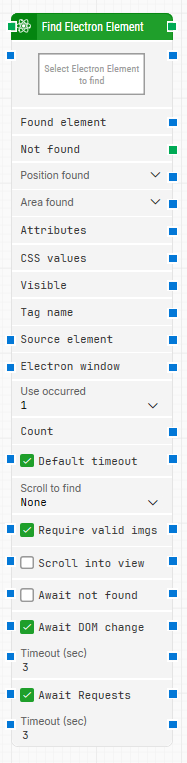
The Find Electron Element block locates a specific element within an Electron application window. It is typically used to identify UI components dynamically during test flows. Once found, the element can be reused as input in other blocks for further interactions or validation.
This block is commonly used in desktop automation for Electron-based applications such as Slack, Microsoft Teams, or custom enterprise apps.
Fully expanded, the Find Electron Element block shows the following properties:
Note: The screenshot on this page uses the Elegance Design, introduced in 2025.3. If you are using an earlier version, your layout may look different.
Quick-start
Drag Find Electron Element onto the canvas.
Select an Electron Element to find by capturing it from the application UI. This is a required step.
Optionally configure additional parameters such as Scroll to find, Use occurred, Await DOM change, and Require valid images.
Run the flow when it’s ready.
Building block parameters
Parameters
Block header: Shows the current name of the Find Electron Element block. You can rename it by double-clicking the title and typing a new name.
Select Electron Element: Sets the locator for the Electron element to be found. Right-click to capture, edit, or clear the locator. This parameter is required for the block to function.
Found element: Outputs the found Electron element, which can be reused as a source in other blocks (e.g., for clicking or extracting attributes).
Not found: Triggers if the element is not found before the timeout period ends. Commonly used to branch execution or trigger a Fail block.
Position found: Returns the X and Y position of the element within the application canvas. Top-left is 0,0.
Area found: Provides the X, Y position and size (width, height) of the found element in pixels.
Attributes: Lists the HTML and custom attributes of the found Electron element. For more targeted use, consider the Get Electron Attribute block.
CSS values: Currently unused.
Visible: Returns True if the found element is visible in the UI.
Tag name: Indicates the HTML tag of the element (e.g., input, div, img).
Source element: Narrows the search scope to within a specific source element. Useful for isolating nested UI regions.
Electron window: Specifies the Electron window to use when multiple windows are open. Ensures the correct context for the search.
Use occurred: Chooses which instance to use if multiple matching elements are found:
1 (default): Uses the first match.
All: Iterates through each match.
Count: Returns the number of elements found that match the locator.
Default timeout: If checked, uses the flow's default timeout setting from the Max. run time. If unchecked, the block uses a fixed timeout of 10 seconds.
Scroll to find: Specifies how scrolling is handled during the search. Options include:
None: No scrolling.
Vertical, Horizontal, or other modes depending on the app.
Require valid images: When enabled, elements with image locators (<img> tags) are only considered valid if the image is successfully loaded.
Scroll into view: Automatically scrolls the found element into view.
Await not found: Waits until the specified element disappears from the UI before continuing. Useful for validating removal of popups or modals.
Await DOM change: Delays the search until no DOM changes are detected for the specified timeout period (e.g., 3 seconds). Helps stabilize searches during dynamic UI updates.
Timeout (sec): Sets the maximum time in seconds to wait before the element is considered Not found. Defaults to 3 if not changed.
Await Requests: Waits until no active XHR requests are detected before searching for the element. Useful in apps that perform background updates frequently.