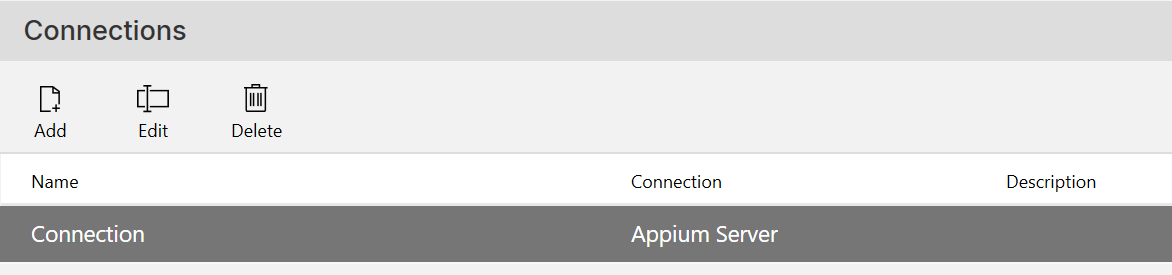
The Appium Server connection is used for automating mobile testing on iOS and Android. It drives native mobile applications using WebDriver.
To use this connection type, you must have an Appium server installed on a host that is accessible from Leapwork.
Note: This feature can be accessed by Leapwork Admins only.
Add Connection
To add an Appium Server connection in Leapwork Flow:
-
Click the Add button.
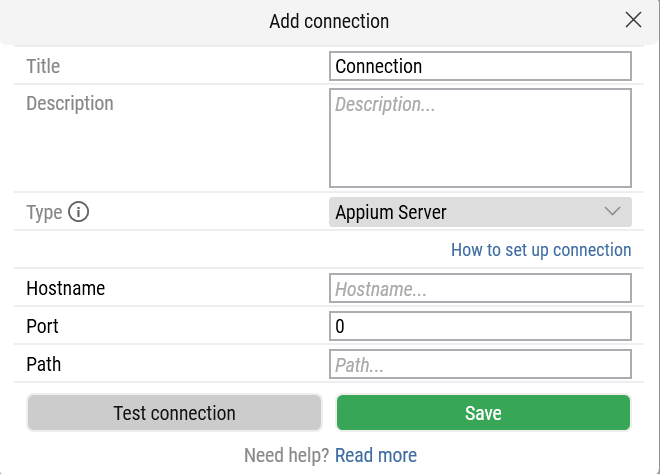
In the Add Connection pop-up window, fill in the following fields:
-
Title: Enter a unique name.
-
Description: Provide a short description.
-
Type: Select Appium Server.
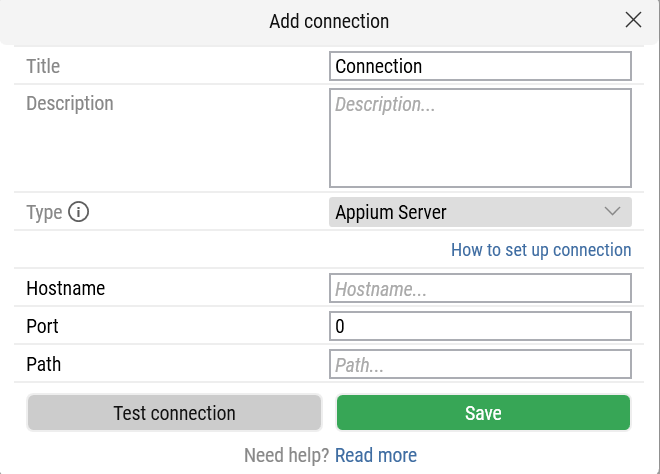
When you select Appium Server, new fields appear:
-
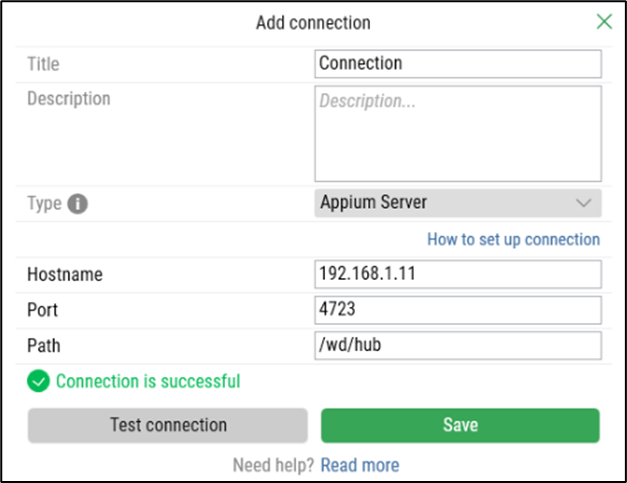
Hostname: The host of the Appium server (IP address or hostname).
-
On iOS devices: Go to Settings → General → About for hostname, or Settings → Network → active network → Properties for IP.
-
On Mac: Go to System Preferences → Network, select Wi-Fi/Ethernet, and copy the IP address.
-
On Windows hosts: Go to Settings → System for hostname, or Settings → Network & Internet → Properties for IP address.
-
-
Port: The port configured in Appium (default:
4723). -
Path: Default is
/wd/hub.
Note: If you use Appium 2, the base path is now/.
-
Click Test connection to verify.
-
Click Save to confirm.
A success message appears when the connection activates.
To update or remove a connection, you can use the Edit or Delete buttons next to the Add button.