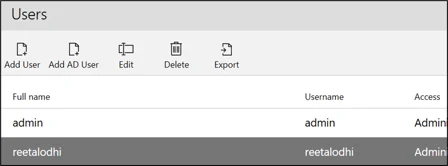
Lightweight Directory Access Protocol (LDAP) is a protocol for connecting to a directory service and it is used for accessing and maintaining user information. Organizations may have customized user directories which follow LDAP protocol.
This feature supports a customized user directory, allowing you to add users and groups to Leapwork.
Notes:
-
This feature can be accessed by Leapwork Admin only.
-
Leapwork users can use only one directory at a time and cannot switch between Active Directory (AD) and LDAP.
-
Delete AD and LDAP users using Leapwork's User Management tool instead of directly from AD or LDAP.
-
Leapwork does not support adding both AD and LDAP users or groups.
-
Switching between AD and LDAP deletes existing users or groups from the previous directory.
Add Connection
To add a connection:
-
Click the Add button and the following pop-up appears:
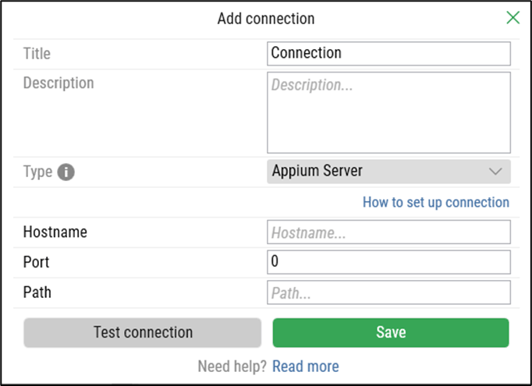
On the Add Connection pop-up window:
-
Enter the title in the Title field. It should be unique.
-
Enter the description in the Description field.
-
From the Type drop-down, select the Lightweight Directory (LDAP) option:
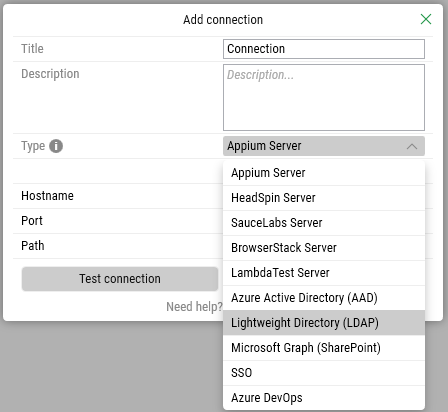
-
Select LDAP and the following new fields appear:
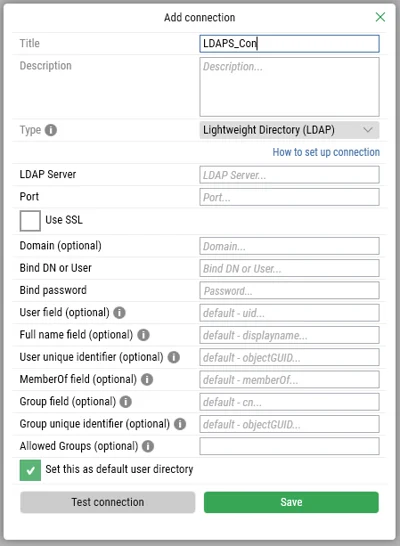
-
Enter the following mandatory attributes to establish a connection with the LDAP server:
-
LDAP Server
-
Port
-
Bind DN or User
-
Bind Password
-
Note: For optimal performance, it is recommended to use port 389. All other attributes are optional.
-
Click the Save & Continue button to save the details. Once your connection is saved, a success message appears to let you know the connection is successful.
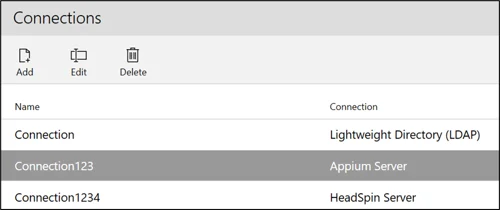
Once the connection is successfully saved, it would be added to the connections list.
Use the Edit or Delete buttons located next to the Add button to modify or remove the connection.
Add an LDAP User
Leapwork integrates with LDAP for centralized user management, allowing administrators to manage accounts and permissions securely and efficiently. Follow these steps to set up and configure an LDAP connection:
-
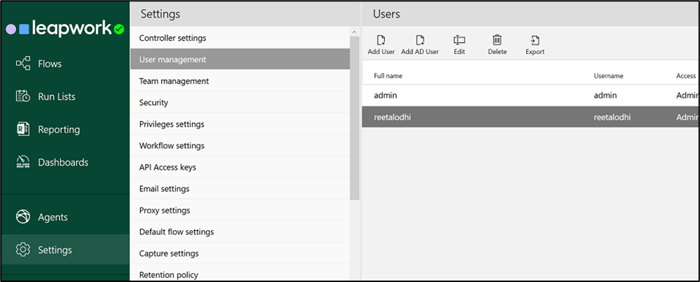
Go to User Management in the Settings section.
-
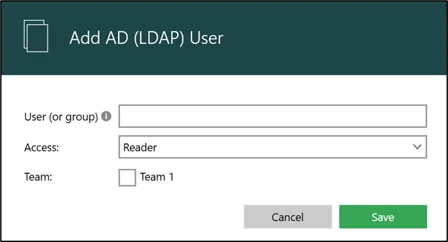
Click Add AD User to open a new window.
-
Enter the User or Group Name to authorize the user or group in the LDAP directory.
-
Select Access from the drop-down menu.
-
(Optional) Check the Team checkbox based on your requirements.
Note: The Team checkbox is only available for Leapwork Enterprise Edition users.
-
Click Save to save the User or Group.
-
To the right of the Add AD User button, use the buttons Edit, Delete and Export to change or remove user profiles or to export them in an Excel format.
Use the Edit, Delete and Export buttons next to the Add User/AD User buttons to modify, remove, or export the connection.